Your Backups Are a GDPR Blind Spot — Time Machine, Snapshots and the Right to Erasure
Here is a conversation that happens in every organisation, and it is always wrong in the same way.
“Did we delete her data?” “Yes, I removed the files last week.” “Are you sure?” “Certain. I emptied the Trash.”
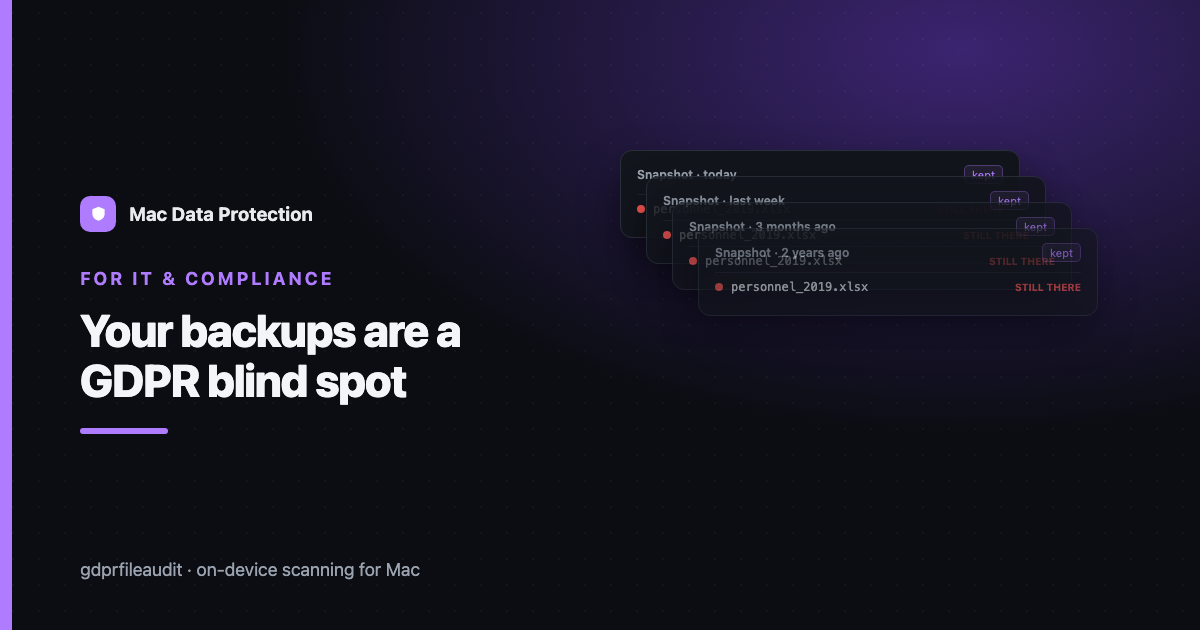
And the file is still there. It’s in last Tuesday’s Time Machine backup, and in the one before that, and in the APFS snapshot the OS took automatically before an update, and on the file server’s nightly backup, and in whatever the backup vendor calls their long-term retention tier. It will be there in three years.
Backups are the single most reliable way that personal data survives its own deletion. They are also almost never included in a data map, an Article 30 record, or an erasure procedure — because backups are filed mentally under “infrastructure,” and personal data is filed under “documents,” and the two categories never meet in anyone’s head until a regulator or a data subject forces the introduction.
This is about closing that gap on Macs and Mac-adjacent infrastructure specifically, and about what a defensible position actually looks like — which is not the same as a perfect one.
Why this is a legal problem and not just an untidy one
Two parts of GDPR collide here.
Storage limitation (Article 5(1)(e)) says you keep personal data no longer than necessary. A backup that retains a deleted personnel file for seven years is, on its face, retaining personal data long past its purpose.
The right to erasure (Article 17) says that when a data subject validly asks for their data to be deleted, you delete it. Not “delete it from the places that are convenient.” Delete it.
The genuinely awkward thing is that these obligations sit in direct tension with the entire purpose of a backup, which is to make deletion not work. A backup system that let you reach in and cleanly excise arbitrary records would be a bad backup system — it would be mutable, and its integrity would be unverifiable. This is not a problem you can engineer away; it’s a real conflict between two legitimate goals.
Regulators know this. The generally accepted position — and it is worth understanding this properly, because it is the difference between a defensible process and a panic — is roughly:
- You are not normally expected to surgically extract an individual from historical backup sets. It’s often technically infeasible and the attempt can compromise the integrity of the backup.
- You are expected to have a defined, bounded retention period for backups, after which they genuinely expire.
- You are expected to ensure the data does not get restored back into live systems. If a restore would resurrect a person you erased, your erasure was a pause, not a deletion.
- You are expected to be able to explain all of the above — to say what your backup retention is, why it’s justified, and what happens if a restore occurs.
Which means the standard is: bounded, documented, and it doesn’t come back. That’s achievable. What is not defensible is not knowing — having backups of indeterminate age, in indeterminate places, with no expiry and no restore procedure. That’s the position most organisations are actually in.
The specific places personal data hides on a Mac after you delete it
macOS is unusually good at keeping copies of things. That is a feature, and it is also the problem.
Time Machine. The obvious one, and the least often reasoned about. Time Machine keeps hourly backups for a day, daily for a month, and weekly for as long as the disk has room. That last clause is doing enormous work: on a large backup disk, “as long as there’s room” can mean years. A file deleted today is retained for the entire span of the weekly backups that contain it. If you have never thought about how far back your Time Machine volume goes, it goes further than you think.
APFS local snapshots. This is the one that surprises people, including experienced admins. When Time Machine can’t reach its destination — laptop away from the office, network volume unavailable — macOS takes local snapshots and keeps them on the internal disk. It also takes snapshots automatically before system updates. These live on the same machine as the “deleted” data, are invisible in Finder, and survive an emptied Trash without difficulty. You can list them (tmutil listlocalsnapshots /) and delete them (tmutil deletelocalsnapshots), and almost nobody ever does, because almost nobody knows they’re there.
The server’s backup, and the server’s snapshots. If the file lived on a share, deleting it from the share is the beginning of the story. The NAS almost certainly has its own snapshot schedule — many have one enabled by default and never reviewed — and the file server has its own backup regime, with its own retention, run by a different team, on a different schedule, that nobody has mapped against the retention policy for the data itself.
Cloud sync trash and version history. iCloud Drive, Dropbox, Google Drive, OneDrive: all of them keep deleted files in a recycle state for a period, and several keep version history independently of that. Deleting the current file does not necessarily remove prior versions.
Mail. Deleting a message with an attachment does not necessarily remove the attachment from the local mail store, and the mail server has its own backup and its own retention, which is usually longer than anyone assumes and set by whoever configured the mail platform in 2015.
The pattern across all of these is identical: the copy that survives is the one nobody chose to keep. No one decided to retain the leaver’s HR file for four years. It just happened, because the systems are designed to be safe, and safety means keeping things.
What a defensible erasure process actually contains
Not perfection. Boundedness, documentation, and non-resurrection. Concretely:
1. Know where your copies are
You cannot have a retention policy for systems you have not enumerated. Write down, for every place personal data lives: what backs it up, on what schedule, and for how long that backup is retained. This is a one-page table, it takes an afternoon, and almost no organisation has it.
The rows are boring and they are exactly the point: Staff Macs → Time Machine to NAS → weekly, retained until disk full → this is the problem row**. Any row where the retention column says “indefinite,” “until it fills up,” or “not sure” is a finding.
2. Give every backup a real expiry
“Until the disk is full” is not a retention period; it is the absence of one. Pick a duration you can justify against the purpose of the backup — operational recovery, usually measured in weeks to a small number of months, not years — and enforce it. The justification is the important bit: you are not required to pick a short period, you are required to be able to explain the one you picked.
For Time Machine specifically: if your organisation’s answer to “how long do we keep endpoint backups” is genuinely “forever, on whatever disk the user plugged in,” you don’t have a backup policy, you have a habit.
3. Deal with local snapshots explicitly
Add snapshot cleanup to your endpoint management. When a machine is offboarded, or when a significant deletion is performed for compliance reasons, thin the local snapshots as part of the procedure. Otherwise “we deleted it from the laptop” is straightforwardly untrue, and it’s untrue on the very device you just handed to somebody else.
4. Build the suppression list
This is the mechanism that makes erasure hold, and it’s the piece almost everyone is missing.
When you erase someone under Article 17, record the erasure — not the data, just the fact and the identifiers needed to act on it. Then, if a restore ever happens, you re-apply the erasure to the restored system. That’s the promise you’re making: not “the data no longer exists in any physical medium,” which would be a lie, but “the data will not return to a live system, and if it ever does, we will remove it again.”
That is the position regulators actually accept, and it is one you can genuinely keep.
5. Write down what you did
Every erasure gets a line: who, what, when, which systems, what remains in backup and until when. That log is the difference between a defensible position and an argument. When someone asks “did you erase her data?” the answer is not “yes” — the answer is “yes, on the 3rd, from these five systems; residual copies exist in backups expiring on the 14th of next month; a suppression entry is in place in case of restore.”
That answer takes ten seconds to give and it ends the conversation. The other answer starts one.
The uncomfortable first step: find out what’s actually in there
All of the above presumes you know what personal data you have. Most organisations discover, at exactly the wrong moment, that they don’t — and that the backup they’ve been diligently retaining for four years contains categories of data they didn’t know they held.
So the first move isn’t a backup policy. It’s a scan.
Look at the live data first — the endpoints, the shares — and find where the personal data actually is. That tells you which backup rows in your one-page table are the ones that matter. A backup of a directory with no personal data in it is an operational concern. A backup of the HR archive is a retention obligation with a legal deadline attached, and it should be treated as one.
The short version
You almost certainly have personal data you believe you deleted. It is in Time Machine, in local snapshots on the very machine you deleted it from, in the NAS’s snapshots, and in the server backup with the retention nobody has ever reviewed.
Nobody expects you to reach into a backup and surgically remove one person. Everybody — including, eventually, a regulator — expects you to know what’s in there, how long it stays, and that it can’t come back.
That’s three sentences of policy and one afternoon of enumeration. It’s the cheapest compliance work available to you, and it’s sitting untouched in almost every organisation, quietly retaining the files of people who left years ago.
Disclosure: I make GDPR File Audit, a Mac app for on-device personal-data scanning — but the approach above works with any tool that scans locally.