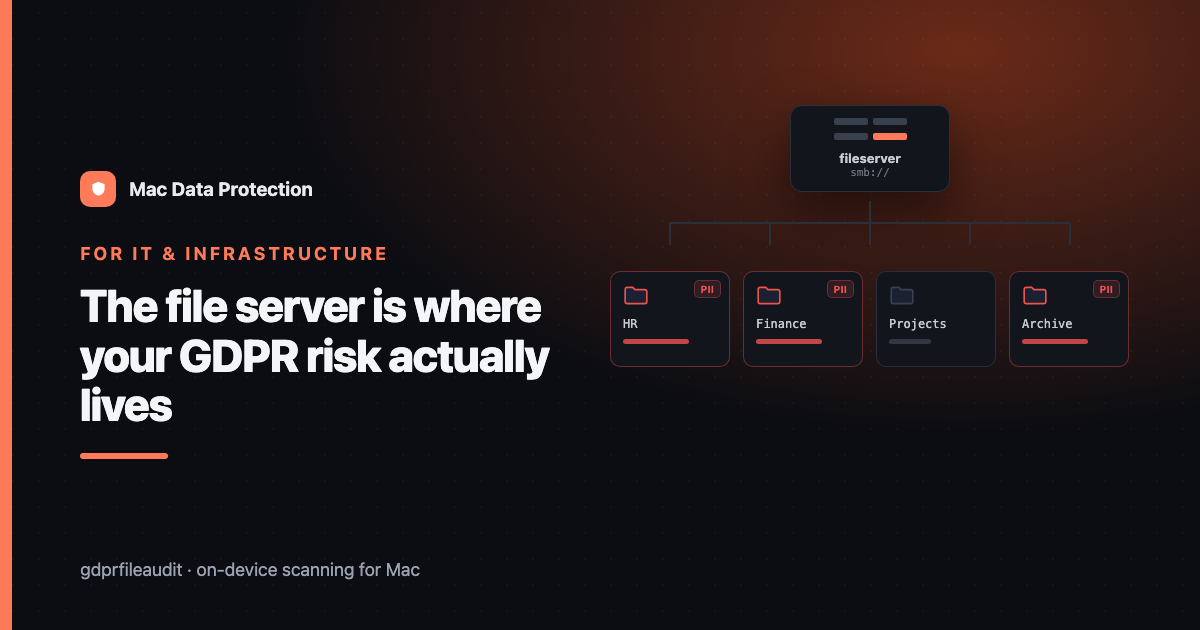
The File Server Is Where Your GDPR Risk Actually Lives — Auditing SMB Shares from a Mac
Ask an IT team where their personal-data risk sits and most will point at laptops. Endpoints are what we manage, encrypt, enrol and wipe. They have agents on them. They show up in dashboards. They feel like the perimeter.
But if you actually go looking for personal data, the laptop is rarely where the bodies are buried. The file server is.
A laptop holds one person’s working set — a few years of their own files, and whatever they downloaded. A shared drive holds everyone’s working set, going back to whenever the server was commissioned, including the files of people who left in 2017, in folders nobody has opened since, under permissions nobody has reviewed. That’s not a hypothetical: it is the normal state of almost every SMB share in existence.
This article is about auditing that. Specifically, auditing it from a Mac, on-device, without shipping the contents of your file server to a third party.
Why shares accumulate personal data faster than endpoints
Three dynamics drive it, and all three are structural rather than anyone’s fault.
Shares are the path of least resistance. When someone needs to hand a file to a colleague, the share is where it goes. When a system exports a report, the share is where it lands. When someone is told “put it somewhere we can all get at it,” they mean the share. Every one of those moments deposits a copy, and almost none of them come with a deletion plan.
Nobody owns the old folders. A laptop has exactly one owner, and when they leave, someone at least thinks about the device. A share directory has an owner in the ACL and nobody in reality. \\fileserver\Departments\HR\2019\ belongs to a department, not a person, and departments don’t offboard.
Permissions drift outward, never inward. Access gets granted to unblock someone on a deadline; it very rarely gets revoked when the deadline passes. Over years, “the HR folder” becomes readable by a set of people that no one has ever deliberately chosen. The data didn’t move — the audience did.
Put those together and the shared drive becomes the single highest-density store of personal data in the organisation, with the weakest ownership and the loosest access control. It is, by a wide margin, where your exposure is.
What “auditing a share” actually means
It does not mean opening folders and looking. At the scale of a real file server — hundreds of thousands of files — reading is not a strategy.
An audit means answering four questions with evidence:
- Which files contain personal data? Not which files are named like they might. Which ones actually contain identifiers: national ID numbers, bank accounts, card numbers, emails, phone numbers, health or other special-category content.
- How sensitive is each one? A file with one stray email address is noise. A spreadsheet with 800 rows of names, addresses and national IDs is a breach waiting for an audience.
- Who can currently reach it? A sensitive file in a tightly-scoped folder is a manageable risk. The same file in a folder that inherits “Domain Users” read access is an incident that hasn’t happened yet.
- Is there any reason to still have it? Almost always, for the oldest and scariest files, the answer is no.
The first two are a scanning problem. The third is a permissions problem. The fourth is a retention conversation. You need all four, but the scan is what unlocks the rest — you cannot have a sensible conversation about retention or access when you don’t know what’s in there.
Mounting and scoping the share
From a Mac, the share is just a mount. Finder → Go → Connect to Server, smb://fileserver/share, authenticate, and it appears under /Volumes/. From that moment a scanning tool can walk it exactly like a local folder.
Which sounds easy, and is — but scoping matters enormously, for two reasons.
Reason one: time. Reading a million files over SMB is slow. Not “grab a coffee” slow; “leave it running overnight” slow. Network round-trips dominate, and the more the tool has to open and parse (PDFs, Office documents, archives, images needing OCR), the longer each file takes. A full-server scan is a batch job, not an interactive one.
Reason two: signal. A result set of forty thousand findings is not a result. It is a second problem. You will not action it, and its existence will quietly convince everyone that data mapping is hopeless.
So scope deliberately. Good first scopes, roughly in order of how much they tend to return per hour spent:
- The HR directory. Highest density of special-category and identifier data anywhere in the building. Also usually the most over-permissioned relative to its sensitivity, because HR shares things with managers ad hoc.
- Finance. Bank details, card data, personal addresses on invoices, sometimes national IDs on expense claims.
- Anything named
Archive,Old,Backup,Tempor a bare year. These directories are where files go when someone is unsure whether they’re allowed to delete them. That uncertainty is exactly the signal that they contain something sensitive. - The departure graveyard. Many organisations have a folder where leavers’ home directories were copied “just in case.” It is, almost by definition, a pile of personal data with no owner and no purpose.
- Anything a user has flagged. If someone has ever said “I think there might be old personnel files in there,” believe them and start there.
Notice that none of these are “the whole server.” Do the whole server eventually. Do not do it first.
What to actually look for
The trap here is searching for names. Names are a terrible search target: they’re ambiguous, they’re everywhere, and you don’t have a list of them anyway.
Search for structure. Personal identifiers have shape, and shape is machine-checkable in a way that words are not:
- National ID numbers have a date component and a checksum. A Swedish personnummer, a Danish CPR, a Finnish HETU — each has a format and a validation rule. A tool that checks the checksum gives you real hits; one that just matches “ten digits in a row” gives you every order number in the building.
- IBANs validate with a mod-97 check. Either it’s a real account number or it isn’t.
- Card numbers validate with Luhn. Same logic.
- VAT numbers, phone numbers, email addresses — all have structure.
And then the categories that don’t have a format but do have vocabulary: special-category data under Article 9 — health, ethnicity, religion, political opinion, union membership, sexual orientation. These need keyword and context detection rather than checksums, and they’re worth flagging separately, because a file containing health information about named individuals is in a different legal risk class from a file containing an email address.
Two things a share audit needs that a naive text search will not do:
OCR. A very large share of the most sensitive material on any file server is scanned. Photographed passports. Scanned sick notes. A picture of a bank card someone sent to accounts. To a text search these are opaque images. To an audit tool with OCR they are exactly what you were looking for. If your scan can’t read images, it will systematically miss the worst files.
Container awareness. Office documents are zip archives. Emails have attachments. Archives contain archives. The interesting data is usually two or three layers in — a .zip of .xlsx files exported from the HR system in 2019. A tool that looks at the wrapper and stops has audited nothing.
Why the scan should stay on your machine
There is a temptation, when facing a large file server, to reach for a cloud service. Upload it all, let someone else’s cluster do the work, get a nice report.
Think about what that sentence actually proposes. In order to reduce the exposure of your personal data, you would begin by transmitting all of it — including the scanned passports, the health records, the leavers’ files — to a third-party system you don’t control, creating a fresh copy on infrastructure that is now in scope for your own compliance obligations. If the data includes children’s data or health data, that’s not a trade-off; it’s a non-starter.
An on-device scan sidesteps this entirely. The Mac mounts the share, reads the files over SMB, does the detection locally, and writes a report. Nothing leaves your network. The scan is subject to exactly the access controls the share already has, and creates no new copies of anything.
Reading the results without drowning
Assume the first scan of an HR share comes back with several hundred flagged files. This is normal and it is not a disaster. It is the first time anyone has actually looked.
Triage on two axes.
Sensitivity. Sort by what the file contains and how much of it. A hundred national IDs beats one. Special-category content beats an email address. A scanned ID document beats a phone number in a signature block. The tool should be ranking this for you; if it isn’t, you’ll do it by hand and you’ll do it badly.
Reach. Cross-reference against permissions. The question that turns a finding into a priority is “who can currently open this?” A sensitive file in a folder only three HR staff can read is a retention question. The same file in a folder that everyone with a domain account can read is today’s problem.
The intersection — high sensitivity, wide reach — is your action list. It is usually much shorter than the raw finding count, and it is where all the actual risk is concentrated. Start there and the exercise stops feeling infinite.
What to do with what you find
For each file on the action list, exactly one of four things is true, and saying which one out loud is the whole job:
- It’s past its retention period. Delete it. Properly — including from the server’s snapshots and backups, or you have deleted nothing. This is the most common outcome for the scary old folders, and it is the one that most reduces risk per minute spent.
- It’s still needed, but it’s in the wrong place. Move it to a controlled location with a deliberate ACL, and remove the scattered copies. Note that “remove the copies” is the part everyone skips and the part that matters.
- It’s still needed and correctly located, but it’s over-collected. You have the national ID when you only ever needed the name. Strip the field. This is data minimisation in its most literal form and it is very often available.
- It’s fine. Some findings are legitimate, current, correctly-scoped records. Mark them as reviewed and move on. An audit that can’t say “this one is fine” is not an audit, it’s an alarm.
Whatever you decide, write it down. Not elaborately — a line per batch. “Scanned \\fs01\HR\Archive, 412 files with personal data, 87 past retention and deleted, 31 relocated to restricted folder, permissions on HR\Archive reduced from Domain Users to HR-Staff.” That paragraph is the evidence that your Article 30 record is real, and it’s the thing that turns a DSAR from a panic into a lookup.
Make it a cycle, not a project
The instinct is to treat this as a one-off cleanup: a big push, a clean server, a tick in a box. It won’t hold. The dynamics at the top of this article — least resistance, no owner, drifting permissions — don’t switch off because you had a good quarter. The share will start refilling the day after you finish.
What works is a cycle. Pick a cadence you’ll actually keep — quarterly is realistic for most teams, termly if you’re a school and want it aligned to the academic year. Each cycle, rescan the high-density shares, look at what’s new since last time, and action it. The first pass is a slog because it’s ten years of backlog. The second is an afternoon.
And the second pass is where the value compounds, because at that point you have something most organisations genuinely do not have: a current, evidenced answer to the question “where is our personal data?” — for the one system where the honest answer used to be “we have absolutely no idea.”
Disclosure: I make GDPR File Audit, a Mac app for on-device personal-data scanning — but the approach above works with any tool that scans locally.