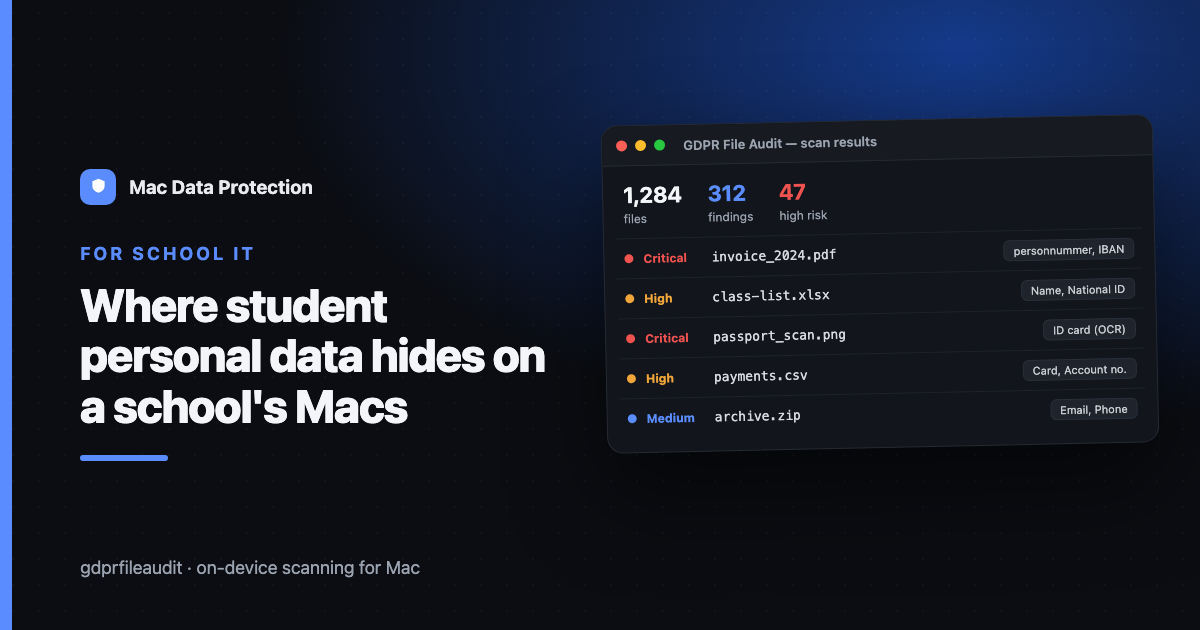
Where Student Personal Data Hides on a School's Macs — and How to Find It
Schools run on personal data. Names, dates of birth, national ID numbers, grades, health notes, custody arrangements, photos, free-school-meal status, special-educational-needs plans. Most of it is necessary. The problem isn’t that schools hold it — it’s that, over the years, copies of it quietly spread across staff Macs and shared drives, long after anyone needs them.
If you run IT for a school or a group of schools on Apple hardware, this is your quiet liability. Here’s where it accumulates, why it matters under GDPR, and a practical way to find it before it becomes an incident.
Why scattered student data is a real risk
Under GDPR, two principles do most of the work here:
- Data minimisation (Article 5(1)(c)) — you should only hold personal data you actually need.
- Storage limitation (Article 5(1)(e)) — you shouldn’t keep it longer than necessary.
A five-year-old spreadsheet of pupils’ national ID numbers sitting in a teacher’s Downloads folder violates both. And the harm isn’t abstract: exposed student data can enable identity fraud, reveal a child’s protected home address, or disclose sensitive categories like health or ethnicity. For children, the stakes are higher and the regulatory tolerance is lower.
The uncomfortable truth is that most schools genuinely don’t know where all of it is. That’s not negligence — it’s entropy.
Where it actually hides on a Mac
In practice, student personal data tends to collect in the same places:
- Old exports from the student information system — CSV/Excel dumps a teacher pulled “just to sort the class list,” then forgot.
- Grade and assessment spreadsheets — often with names + IDs + results in one file.
- PDFs of reports, IEPs, and health plans — the highest-sensitivity documents, frequently emailed and re-saved.
- Email attachments — the same sensitive PDF, now living in three people’s Mail Downloads.
- The Downloads folder — the universal graveyard of one-off exports.
- Shared network drives / SMB shares — where a single mislabelled folder can expose an entire cohort.
- Photos — class photos, and screenshots of records taken “to deal with later.”
- Local backups and old device migrations — a Mac handed down between staff often carries the previous user’s files.
None of these are exotic. They’re the everyday residue of people trying to do their jobs.
Why Spotlight isn’t enough
The instinct is: “I’ll just search for it.” But Spotlight answers the wrong question. It’s built to find a file you’re looking for by name or keyword — not to answer “which of my 40,000 files contain a national ID number, a card number, or a health note?”
Spotlight won’t:
- Recognise the pattern of a national ID or IBAN inside a document.
- Read text inside scanned PDFs or images (no OCR of a photographed record).
- Look inside archives, spreadsheets, or email attachments as data types rather than filenames.
- Tell you the difference between a file that mentions “grades” and one that actually lists pupils with identifiers.
To audit for personal data you need pattern-based detection, not keyword search.
A practical audit you can run this term
You don’t need a big project to make real progress. A protective, repeatable pass looks like this:
- Pick a scope. Start with one shared drive or one department’s Macs — not everything at once.
- Inventory the file types. Documents, spreadsheets, PDFs, images, email exports, archives. Sensitive data lives in all of them.
- Scan for patterns, not names. Look for national ID numbers, card and account numbers, emails, phone numbers, and special-category keywords (health, ethnicity, religion) — the identifiers that make a file risky.
- Rank by sensitivity. A file with 200 pupils’ IDs matters more than one stray email address. Triage accordingly.
- Decide per file: keep and secure, minimise (strip what you don’t need), or delete (past its retention period). Write the decision down.
- Record what you did. A short log of “we scanned X, found Y, actioned Z” is exactly the evidence an Article 30 record or a DSAR response needs later.
Do this once and you’ll be shocked what surfaces. Do it each term and it stays under control.
What to do when you find something sensitive
- If it’s past retention: delete it — properly, including from Trash and backups.
- If it’s still needed: move it to a controlled, access-limited location and remove the scattered copies.
- If it’s over-collected: strip the fields you don’t need (do you really need the ID number, or just the name?).
- If it looks like a breach may have occurred: follow your incident process — GDPR gives you 72 hours to notify.
The goal isn’t zero data. It’s knowing where your student data is and being able to show it.
Keeping it in one place
Everything above can be done manually — and for a small school, a disciplined termly pass may be enough. As you scale to hundreds of devices, the bottleneck becomes finding the data reliably across every file type without shipping it to a cloud service (which, for children’s data, you especially don’t want to do).
But the tool is secondary. The habit is what matters: scan, triage, minimise, record — every term. Your pupils’ data is worth that much.
Disclosure: I make GDPR File Audit, a Mac app for on-device personal-data scanning — but the approach above works with any tool that scans locally.